

Updating the firmware
Firmware EVAsubaqua
As EVA continues to innovate, firmware updates are available. These firmware updates are not installed automatically and are not mandatory, but they can easily be updated manually via our website, and can only be installed locally on our products. The instructions for performing a firmware update are provided below:
If you have a direct connection with the 4CH driver, it will not be possible to connect to another device or internet.
Connect the EVA 4CH LED driver via Wi-Fi
Preparation
Download the firmware. Save the firmware (xxx.bin or .zip) locally on your tablet or laptop/computer and unzip the file.
We recommend using a tablet, laptop or a PC. A phone screen is too small.
Connection via Wi-Fi
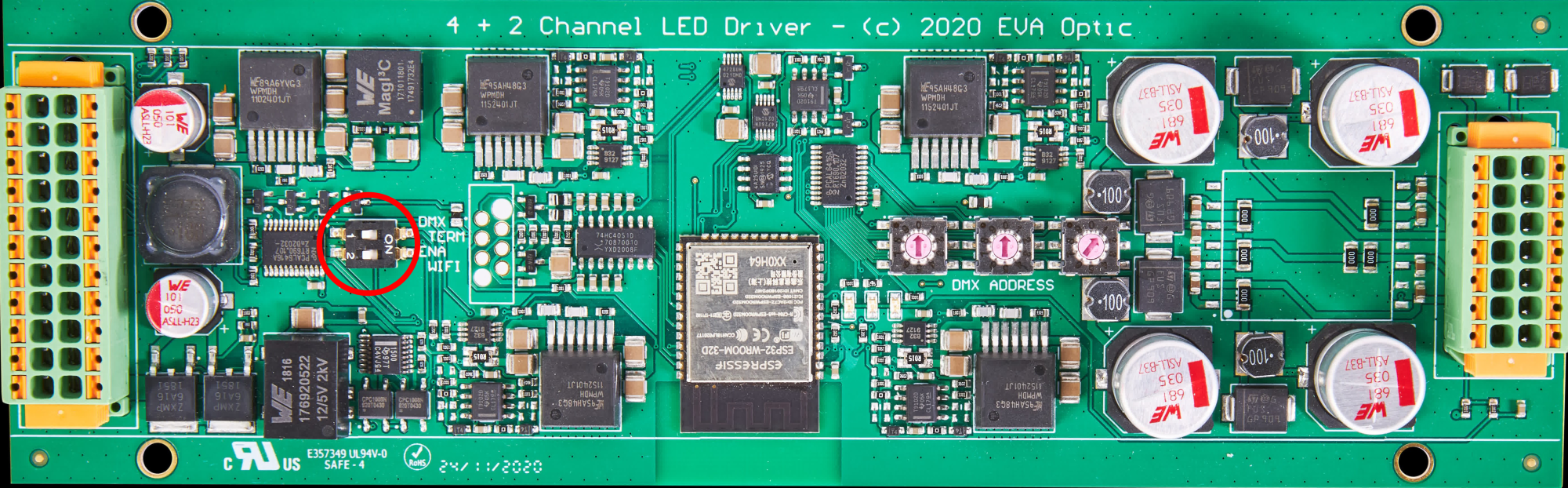
To connect with the 4CH driver to Wi-Fi, set the “ENA WIFI” dip switch ON.
When the switch is ON, the light turns green and orange, indicating that the device is in slave mode.
* After a period of time (approximately 5 – 7 minutes), the connection may be lost. The Wi-Fi will then be disconnected and the light will turn red. When the light is red, switch the dip switch off again and then back on.
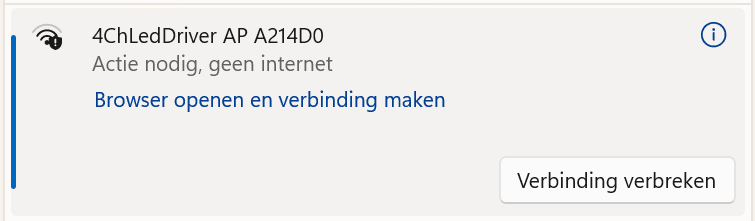
You will see “4CHLedDriver xxxxx” in your Wi-Fi connections.
Make a direct Wi-Fi connection with the 4CH driver, and select ‘connect automatically’.
Once connected, a pop-up screen with the EVA logo will automatically appear.
If the pop-up screen doesn’t appear, open a browser and type “192.168.4.1” in the address bar, and press enter to open the Web app.
Once the EVA logo appears on the pop-up screen, click ‘continue’ on the bottom of the screen.
You will see a group with 1 or more drivers (depending on whether the board is master or slave).

On the screen that opens, you can select the arrow at the top right on the screen.

The screen for managing the drivers opens. Select ‘Prepare for update’ and ‘confirm’.
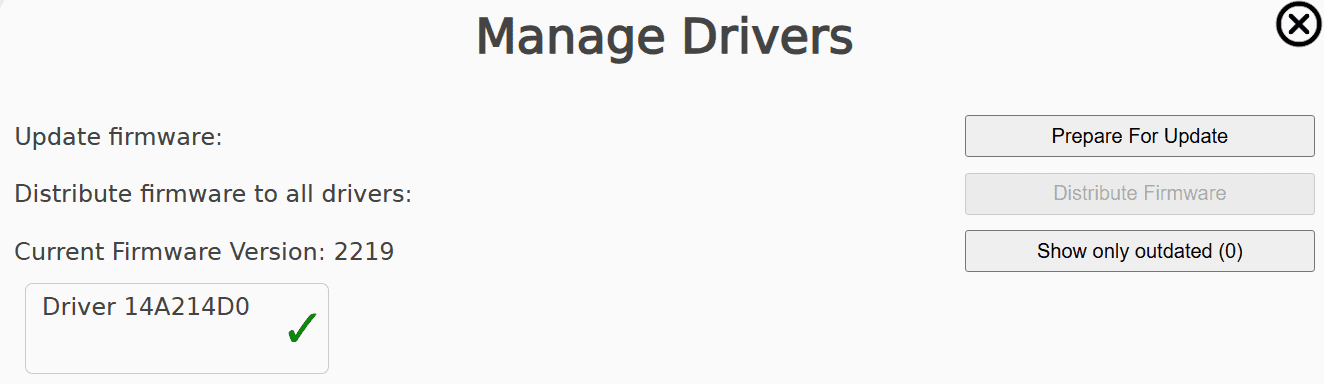
The 4CH will restart in preparation for the update, which may cause the connection to be temporarily lost.
After preparation, check whether the connection has been lost. If so, the Wi-Fi connection must be re-established. This usually happens automatically, but in some cases you may need to reconnect manually.
You can reconnect once the green and orange indicator lights are back on.
Once connected, reload the page, then click ‘Continue’ and press the arrow button again.
Press on “Select a file” and select the downloaded new firmware file: “4CHLedDriver xxxx”.
Once the firmware has been uploaded and installed, check your connection and then verify that the update has been successfully installed.
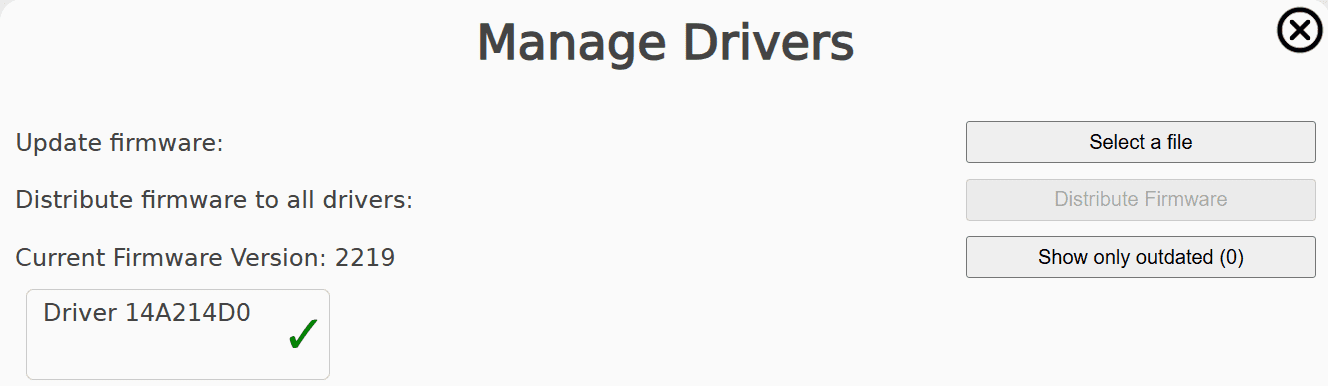
After successfully updating, switch off the ENA WIFI switch.
The green indicator light will then turn on.